

Consent dialog
When a third-party application redirects a user to the/authorize endpoint and requests access to an API, Auth0 displays a consent dialog listing the permissions the application is requesting.
The following authorization request displays a consent dialog asking the user to approve the read:posts and write:posts permissions for the API:
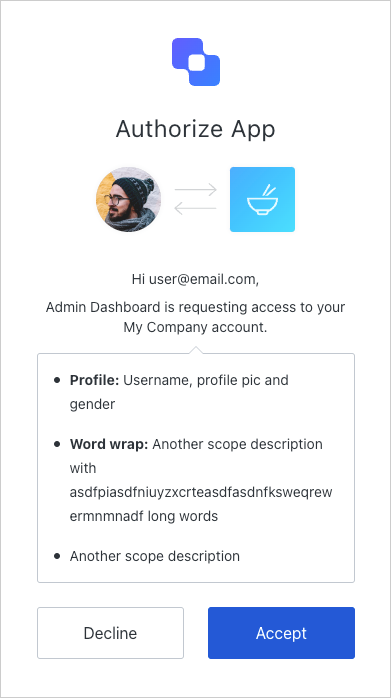
Third-party applications with enhanced security controls do not support OIDC scopes (
openid, profile, email) in this release. The consent dialog shows API scopes only. OIDC support for third-party applications is planned for a future release.Scope descriptions
By default, the consent page uses scope names to prompt for the user’s consent. As shown below, define scopes using theaction:resource_name format for clear display:
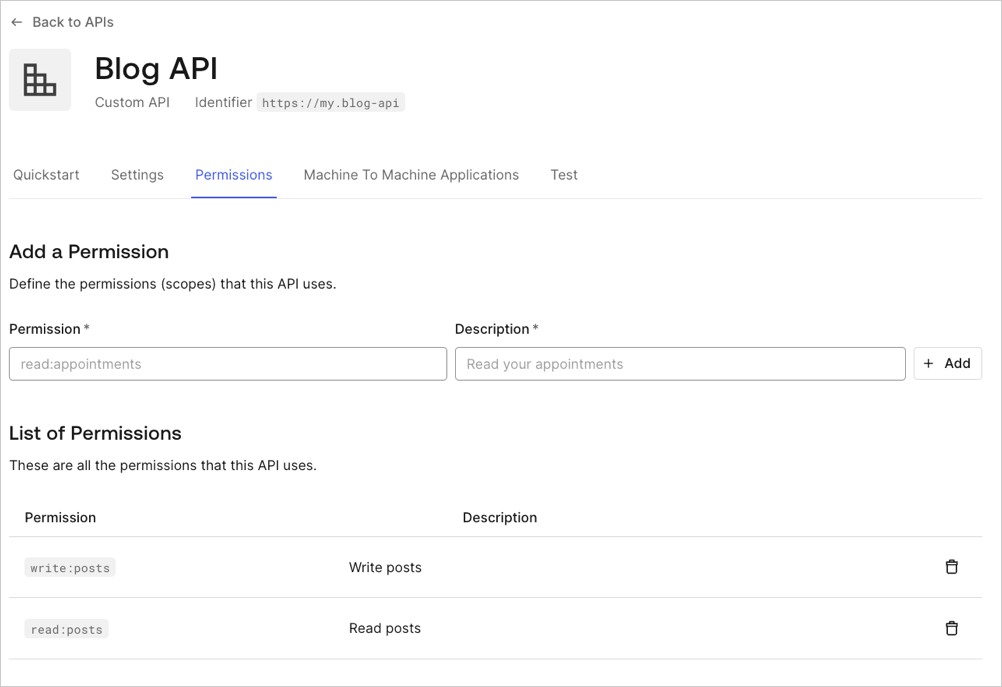
use_scope_descriptions_for_consent flag to true:
Using the Auth0 CLI? If you haven’t already, set up and authenticate your CLI session before running this command.
Handle rejected permissions
When a user declines consent, the behavior depends on the application’s redirection policy:open_redirect_protection(default for third-party apps): Auth0 displays an error page instead of redirecting. This prevents open redirect attacks.allow_always: Auth0 redirects to theredirect_uriwith anaccess_deniederror:
Skip consent for first-party applications
First-party applications can skip the consent dialog when the API has the Allow Skipping User Consent option enabled. To navigate to the Allow Skipping User Consent toggle, select Applications > APIs > (select the API) > Settings > Access Settings. Third-party applications always require consent and cannot skip the consent dialog.Even when consent is skipped for first-party applications, a login confirmation prompt may still appear when the application uses a non-verifiable callback URI (such as
localhost or a custom URI scheme). This protects users against application impersonation on the same device. To learn more, read Measures Against Application Impersonation.Consent with Organizations
When a third-party application authenticates users in an Organization context, consent is scoped to the Organization. A user who consents to an application in one Organization has not consented to the same application in another Organization.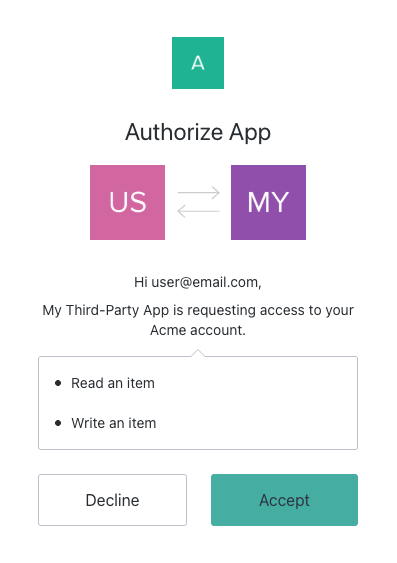
- A user accessing the same third-party application from a new Organization sees the consent dialog again, even if they previously consented in a different Organization.
- Revoking consent in one Organization does not affect consent in another.
- The grant is stored per Organization.
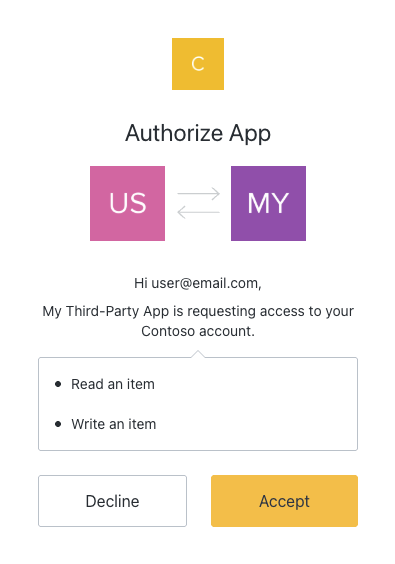
prompt=consent in the /authorize request.
Revoke consent
To revoke a user’s consent for a specific application:- Navigate to Auth0 Dashboard > User Management > Users.
- Select the user.
- Select the Authorized Applications tab.
- Select Revoke next to the application.
Password-based flows
The Resource Owner Password Flow is not available for third-party applications. It applies to first-party applications only. For first-party applications, no consent dialog is involved because the user directly provides their password to the application, which is equivalent to granting the application full access to the user’s account.Force consent
To force users to provide consent on every login (even if they have an existing grant), includeprompt=consent in the /authorize request: