

 Authenticate
 Manage Users
 Customize
 Platform
Obtain Apple Team ID and Bundle Identifier
- To find your Apple Team ID, go to your Apple developer account summary page.
- To find your iOS application’s Bundle identifier, go to its Xcode project settings page.
Provide Apple Team ID and Bundle Identifier to Auth0
-
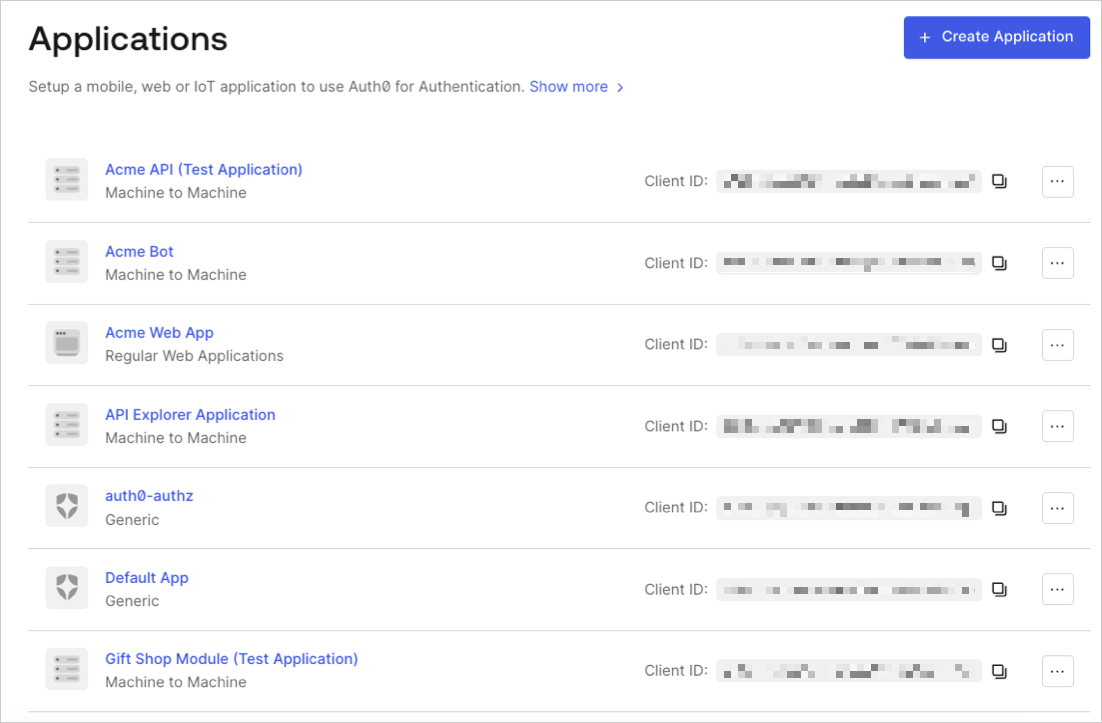
Go to Dashboard > Applications > Applications and select the name of the application to view.
- Scroll to the bottom of the Settings page, and select Show Advanced Settings.
-
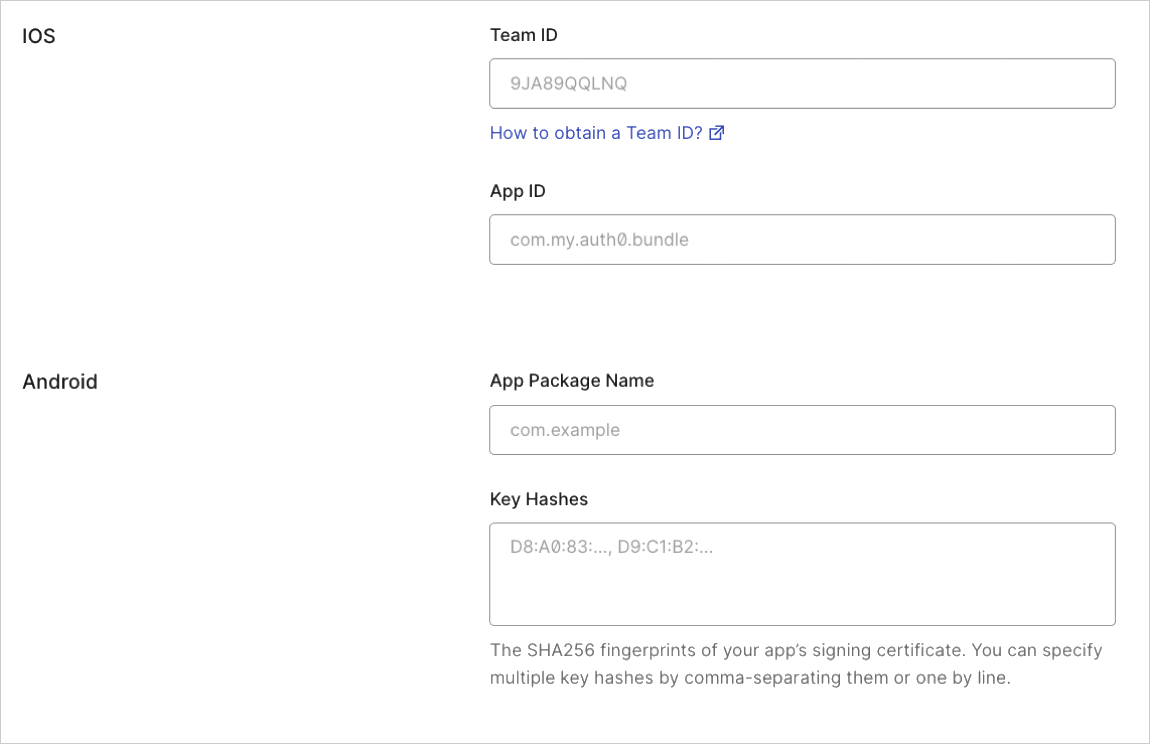
Select Device Settings, provide the Team ID and the App bundler identifier values for your iOS application and select Save Changes.
Test link
Check whether the universal linksapple-app-site-association file is available for your application by navigating to the following URL in your browser: {yourDomain}/apple-app-site-association
If the link is successful, you will see the following JSON (formatted for readability):