

 Authenticate
 Manage Users
 Customize
 Platform
Features affected
The following Auth0 features use Node 8:- Rules
- Hooks
- Custom database connections
- Custom social connections
- Extensions
Tasks
As part of the process of introducing Node 12 in our Webtask runtime, we ran a number of tests to determine which modules are not forward-compatible from Node 8 to 12. Most customers should be able to upgrade to Node 12 without any issues. That said, before you migrate, we highly recommend testing all of your:- Rules
- Hooks
- Custom database connections and scripts
- Custom social connections
- Extensions
Enable Node 12 runtime
There may be additional behavioral changes as a result of this migration, so we have provided a migration switch that allows you to control the migration of your environment to the new Webtask runtime using Node 12. Auth0 recommends that that you first switch your development tenant to Node 12 runtime, complete testing in your development tenant, and migrate your production tenant only when you see no issues in development. You can query the Management API for your rules, hooks, custom database scripts, and custom social connections. This will make it easier for you to move items from your production tenant to development tenant for testing purposes. When using the Connections endpoints in the , custom database scripts can be retrieved or updated usingoptions.customScripts. Similarly, you can find custom social connections in options.scripts.fetchUserProfile.
- Enable Node 12 on your development tenant using the new Extensibility panel on the Advanced Tenant Settings page of the Dashboard. Choose Node 12 from the Runtime drop-down.
- Click Save.
- If you use the items listed below, complete the migration steps for each of them.
- Test your configuration.
- Once you are sure that nothing has broken, use steps 1 and 2 above to enable Node 12 on your production tenant.
Allowlist new URLs
The Delegated Administration Extension and the (SSO) Dashboard Extension require allowlisting the URLs used to access extensions and custom webtasks. When you upgrade to Node 12, the URLs you use to access extensions and custom webtasks will change. This is a breaking change for these extensions. If you use any of these extensions, you must allowlist the new URLs both as Allowed Callback and as Allowed Logout URLs. The region portion of the URL will change from 8 to 12. If you access an extension using the URL:https://{yourTenant}.us8.webtask.io/dummy-extension-url
when you upgrade to Node 12, the URL will be:
https://{yourTenant}.us12.webtask.io/dummy-extension-url
- Go to Dashboard > Applications > Applications > Settings, and add the URL to the fields Allowed Callback URLs and Allowed Logout URLs.
- The execution URLs will also change for custom webtasks in your Auth0 container. You must update any external applications that call those webtasks.
Republish Authorization Extension rule
If you use the Authorization Extension, it generates anauth0-authorization-extension rule. Republish this rule from within the Authorization Extension to update the URLs automatically.
- Ensure you have upgraded to the latest version of the Authorization Extension from the Installed Extensions tab. If the Upgrade button is present, click to upgrade. If the button is not present, you are already on the latest version of the extension.
- Open the Authorization Extension configuration page.
- To update the URL in the rule, publish the rule again by clicking the Publish Rule button.
- Test to make sure everything is still working. If you see an Invalid API Key error after updating, click the Rotate button to generate a new API key.
Configure Delegated Administration URLs
If you use the Delegated Administration Extension, the matrix that follows contains the updated URLs you must configure after you migrate to Node 12. The URL varies based on your location.
For example, if you are located in the USA and you use the Delegated Administration, you should update the following fields in your application’s settings:
- Allowed Callback URLs:
https://{yourTenant}.us12.webtask.io/auth0-delegated-admin/login - Allowed Logout URLs:
https://{yourTenant}.us12.webtask.io/auth0-delegated-admin
Configure SSO Dashboard URLs
The matrix that follows contains the updated URLs you must configure after you migrate to Node 12. The URL varies based on your location. The login URL for Admins:
The login URL for Users:
Update Extensions
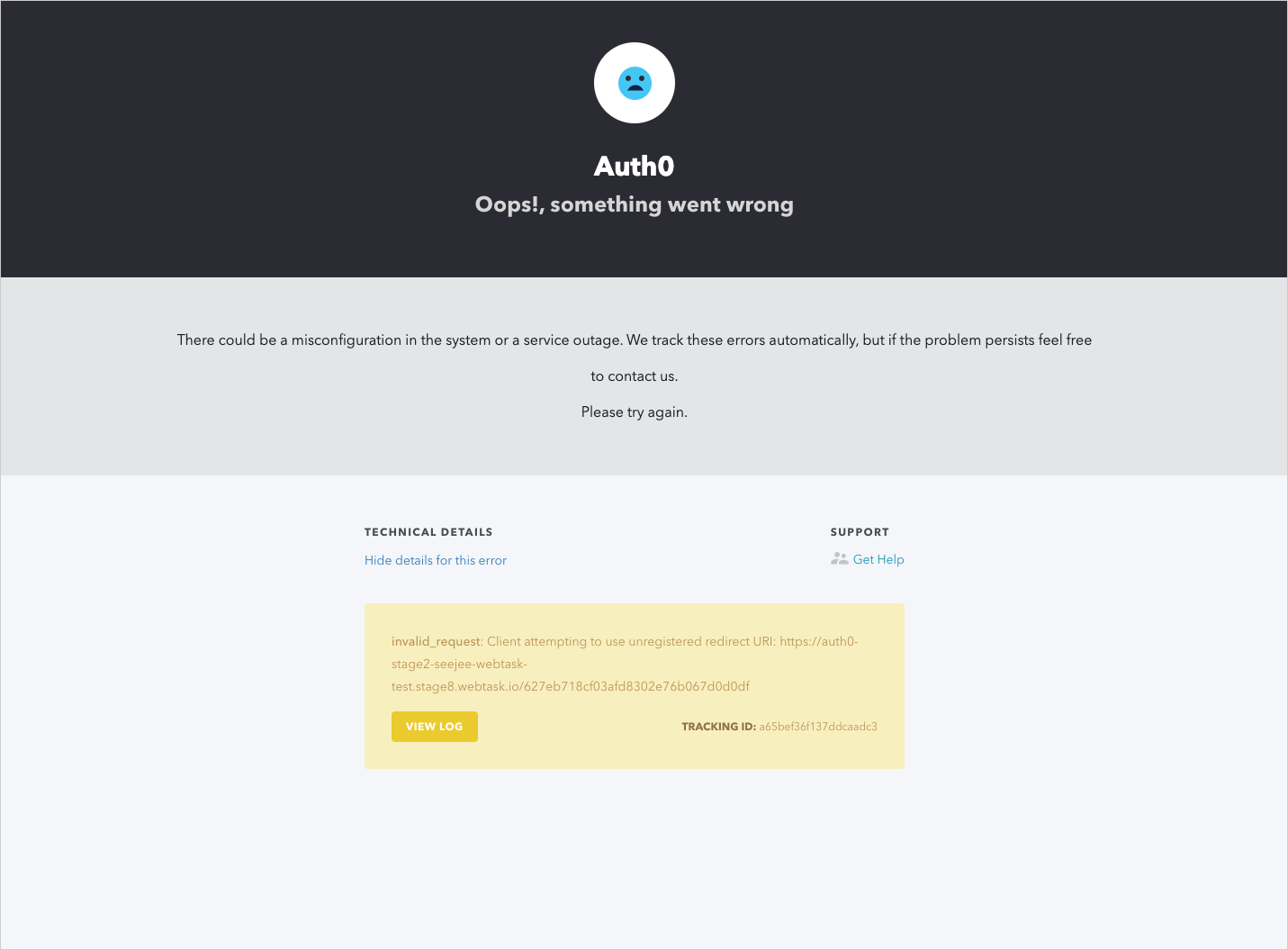
Most extensions use thePUBLIC_WT_URL hidden secret for authorization. This secret depends on the runtime version and does not update automatically.
To update it, you need to save the extension’s settings (no changes are necessary). To do so, after switching the runtime to Node 12, you need to open the extension’s settings in the extensions dashboard (gear icon), and click Save. After that, the extensions gallery will update the PUBLIC_WT_URL secret based on the selected runtime.
If you do not update the PUBLIC_WT_URL hidden secret, you will receive the following error:
Update pinned modules
If you are using the following built-in modules (that is, modules that you did not explicitly require), please be aware that some versions were updated to work with Node 12. The following table summarizes the changes. These new versions should remain backwards compatible with their previous versions.
If you have manually pinned modules, you may need to manually update them so that your code runs with Node 12.
For example, you must change:
var bcrypt = require(‘bcrypt@1.0.3’);
to
var bcrypt = require(‘bcrypt’);
or, if the module must be pinned to a specific version:
var bcrypt = require(‘bcrypt@3.0.8’);