

Use cases
Common use cases for the refresh token exchange include:- Web application: A web-based productivity app connects to a user’s Google Calendar and performs tasks on the user’s behalf, such as scheduling meetings, without requiring the user to re-authenticate.
- Mobile application: A mobile photo gallery app connects to a user’s Google Photos account and uploads photos as they’re taken, keeping the user logged in by refreshing the access token in the background.
How it works
The following sequence diagram describes end-to-end how to call external APIs using the refresh token exchange in Auth0: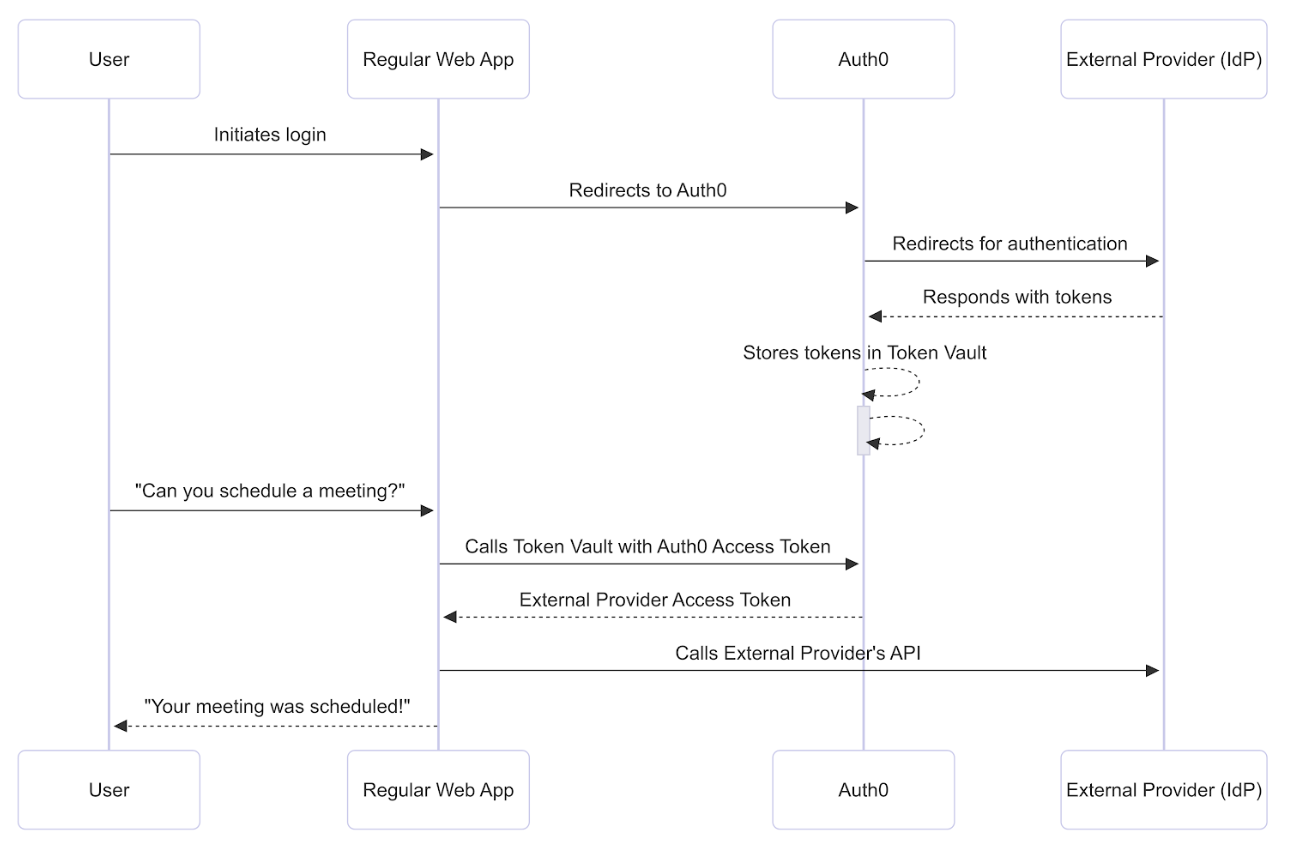
Prerequisites
Before getting started, you must configure the refresh token exchange with Token Vault.Step 1: Connect and authorize access
To schedule the meeting, the web application needs to connect with Google via Auth0 and then receive the user’s permission to access the Google Calendar API. The user logs in to the application via Google with the Connected Accounts flow, which uses the My Account API. If the application uses Organizations, the user signs in to the target organization before continuing. After the My Account API validates and completes the Connected Accounts request, it stores the Google access and refresh tokens with the requested calendar scopes in the Token Vault.Step 2: Perform refresh token exchange
While Token Vault does not support refresh token rotation, you can use DPoP to bind Auth0-issued tokens to your client for additional security. To successfully perform the refresh token exchange with Token Vault, disable Allow Refresh Token Rotation for your application in the Auth0 Dashboard.
POST request to the /oauth/token endpoint with the following parameters:
Step 3: Auth0 Authorization Server validates refresh token
The Auth0 Authorization Server validates and loads the user profile associated with the Auth0 refresh token:- Auth0 checks if the user profile’s
connected_accountsarray contains a user account with the connection name passed in the authorization request. - If the authorization request contains
login_hint, Auth0 looks for an identity matching both the connection name and thelogin_hint. - If Auth0 can’t find the user, it returns a
401status code with an error message.