> ## Documentation Index
> Fetch the complete documentation index at: https://docs-staging.auth0-mintlify.app/llms.txt
> Use this file to discover all available pages before exploring further.
> Describes how to install, use and configure options for the Guardian.swift iOS SDK.
# Guardian.swift iOS SDK
[Guardian.swift](https://github.com/auth0/Guardian.swift) allows you to integrate Auth0's Guardian multi-factor service in your own iOS app, transforming it into the second factor itself. Your users will get all the benefits of our frictionless multi-factor authentication from your app. To learn more, read [Getting Started with Apple Push Notification Service](/docs/secure/multi-factor-authentication/multi-factor-authentication-factors/configure-push-notifications-for-mfa#configure-push-notifications-for-apple-using-apn-).
## Requirements
* iOS 10+ and Swift 4.1 is required in order to use Guardian.
* To use this SDK you have to configure your tenant's Guardian service with your own push notification credentials, otherwise, you would not receive any push notifications. To learn more, read [Configure Push Notifications for MFA](/docs/secure/multi-factor-authentication/multi-factor-authentication-factors/configure-push-notifications-for-mfa).
## Install Guardian iOS SDK
### CocoaPods
Guardian.swift is available through [CocoaPods](http://cocoapods.org). To install it, add the following line to your Podfile:
```bash lines theme={null}
pod 'Guardian', '~> 1.1.0'
```
### Carthage
Add this line to your Cartfile:
```bash lines theme={null}
github "auth0/Guardian.swift" ~> 1.1.0
```
## Enable Guardian push notifications
1. Go to [Dashboard > Security > Multi-factor Auth](https://manage.auth0.com/#/guardian).
2. Toggle **Push Notification** on to enable it.
3. [Configure push notifications](/docs/secure/multi-factor-authentication/multi-factor-authentication-factors/configure-push-notifications-for-mfa#configure-push-notifications-for-apple-using-apn-).
## Usage
`Guardian` is the core of the SDK. To use the SDK, import the library:
```swift lines theme={null}
import Guardian
```
Set the domain for your tenant. Or, use the custom domain if you configured one for your tenant:
```swift lines theme={null}
let domain = "..auth0.com"
```
### Enroll
An enrollment is a link between the second factor and an Auth0 account. When an account is enrolled you'll need it to provide the second factor required to verify the identity. If your app is not yet using push notifications or you're not familiar with it, see [Apple Push Notification Service Overview](https://developer.apple.com/go/?id=push-notifications) for details.
For an enrollment you need the following information, besides your tenant domain:
| Variable | Description |
| ------------------ | -------------------------------------------------------------------------------------------------------------------- |
| **Enrollment URI** | Value encoded in the QR code scanned from Guardian Web Widget or your enrollment ticket sent to you in email or SMS. |
| **APNS Token** | Apple APNS token for the device. It must be a string containing the 64 bytes (in hexidecimal format). |
| **Key Pair** | An RSA (private/public) key pair used to assert your identity with Auth0 Guardian. |
After you have the information, you can enroll your device:
```swift lines theme={null}
Guardian
.enroll(forDomain: "{yourTenantDomain}",
usingUri: "{enrollmentUri}",
notificationToken: "{apnsToken}",
signingKey: signingKey,
verificationKey: verificationKey
)
.start { result in
switch result {
case .success(let enrolledDevice):
// success, we have the enrollment device data available
case .failure(let cause):
// something failed, check cause to see what went wrong
}
}
```
On success you'll obtain the enrollment information, that should be secured stored in your application. This information includes the enrollment identifier, and the token for Guardian API associated to your device for updating or deleting your enrollment.
#### Signing and verification keys
Guardian.swift provides a convenience class to generate a signing key:
```swift lines theme={null}
let signingKey = try DataRSAPrivateKey.new()
```
This key only exists in memory but you can obtain its `Data` representation and store securely in, for example, an encrypted SQLiteDB:
```javascript lines theme={null}
// Store data
let data = signingKey.data
// perform the storage
// Load from Storage
let loadedKey = try DataRSAPrivateKey(data: data)
```
But if you just want to store inside iOS Keychain:
```swift wrap lines theme={null}
let signingKey = try KeychainRSAPrivateKey.new(with: "com.myapp.mytag")
```
The above example creates a key and stores it automatically under the supplied tag. If you want to retrieve it, you can use the tag:
```swift wrap lines theme={null}
let signingKey = try KeychainRSAPrivateKey(tag: "com.myapp.mytag")
```
For the verification key, we can just obtain it from any `SigningKey`, for example:
```swift lines theme={null}
let verificationKey = try signingKey.verificationKey()
```
### Allow login requests
Once you have the enrollment in place, you will receive a push notification every time the user has to validate their identity with MFA. Guardian provides a method to parse the data received from APNs and return a `Notification` instance ready to be used.
```swift lines theme={null}
if let notification = Guardian.notification(from: notificationPayload) {
// we have received a Guardian push notification
}
```
Once you have the notification instance, you can easily allow the authentication request by using the `allow` method. You'll also need some information from the enrolled device that you obtained previously. In case you have more than one enrollment, you'll have to find the one that has the same `id` as the notification (the `enrollmentId` property).
When you have the information, `device` parameter is anything that implements the protocol `AuthenticatedDevice`:
```swift lines theme={null}
struct Authenticator: Guardian.AuthenticationDevice {
let signingKey: SigningKey
let localIdentifier: String
}
```
Local identifier is the local id of the device, by default on enroll `UIDevice.current.identifierForVendor`. Then just call:
```swift lines theme={null}
Guardian
.authentication(forDomain: "{yourTenantDomain}", device: device)
.allow(notification: notification)
.start { result in
switch result {
case .success:
// the auth request was successfuly allowed
case .failure(let cause):
// something failed, check cause to see what went wrong
}
}
```
### Reject login requests
To deny an authentication request call `reject` instead. You can also send an optional reject reason. The reject reason will appear in the Guardian logs.
```swift lines theme={null}
Guardian
.authentication(forDomain: "{yourTenantDomain}", device: device)
.reject(notification: notification)
// or reject(notification: notification, withReason: "hacked")
.start { result in
switch result {
case .success:
// the auth request was successfuly rejected
case .failure(let cause):
// something failed, check cause to see what went wrong
}
}
```
### Unenroll
If you want to delete an enrollment, for example, if you want to disable MFA, you can make the following request:
```swift lines theme={null}
Guardian
.api(forDomain: "{yourTenantDomain}")
.device(forEnrollmentId: "{userEnrollmentId}", token: "{enrollmentDeviceToken}")
.delete()
.start { result in
switch result {
case .success:
// success, the enrollment was deleted
case .failure(let cause):
// something failed, check cause to see what went wrong
}
}
```
### Set up mobile-only OTP enrollment
You can enable one-time passwords (OTP) as an MFA factor using the Auth0 Dashboard or Management API. This option does not require a QR code and allows users to enroll manually.
To invite a user to enroll, navigate to the [Auth0 Dashboard > User Management > Users](https://manage.auth0.com/#/users) and select a user. Then, access their Details tab and use the Multi-Factor Authentication section to send an enrollment invitation.
#### Connect a resource
You can connect a resource using the Auth0 Dashboard or the Guardian SDK.
##### Use Auth0 Dashboard
1. Access the Auth0 login prompt and copy the provided code or a similar base32 encoded key obtained from another source. In the next step, you will enter this code into an authentication application.
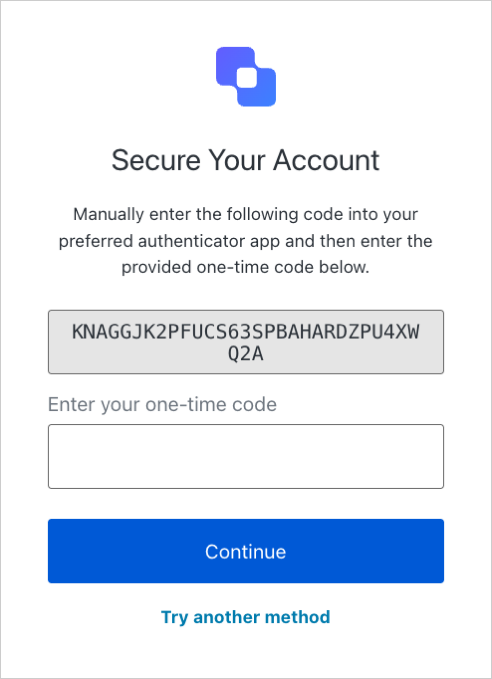 2. Add the code you copied to an authentication application, such as Guardian.
##### Use the SDK
1. Import the Guardian library.
```swift lines theme={null}
import Guardian
```
2. Create a code generator.
```swift lines theme={null}
let codeGenerator = try Guardian.totp(
base32Secret: enrollmentCode, // Enrollment code entered by user
algorithm: .sha1 // Algorithm used by TOTP
)
```
3. Retrieve generated code.
```swift lines theme={null}
codeGenerator.code()
```
#### Enter one-time code
On the Auth0 login prompt, enter the code you generated in the previous step.
After selecting Continue, a message displays stating your application has been added as an authentication factor for your user.
#### Log in with your app
After the factor has been enrolled, your user can log in using your app. First, choose the Guardian app as your authentication method.
2. Add the code you copied to an authentication application, such as Guardian.
##### Use the SDK
1. Import the Guardian library.
```swift lines theme={null}
import Guardian
```
2. Create a code generator.
```swift lines theme={null}
let codeGenerator = try Guardian.totp(
base32Secret: enrollmentCode, // Enrollment code entered by user
algorithm: .sha1 // Algorithm used by TOTP
)
```
3. Retrieve generated code.
```swift lines theme={null}
codeGenerator.code()
```
#### Enter one-time code
On the Auth0 login prompt, enter the code you generated in the previous step.
After selecting Continue, a message displays stating your application has been added as an authentication factor for your user.
#### Log in with your app
After the factor has been enrolled, your user can log in using your app. First, choose the Guardian app as your authentication method.
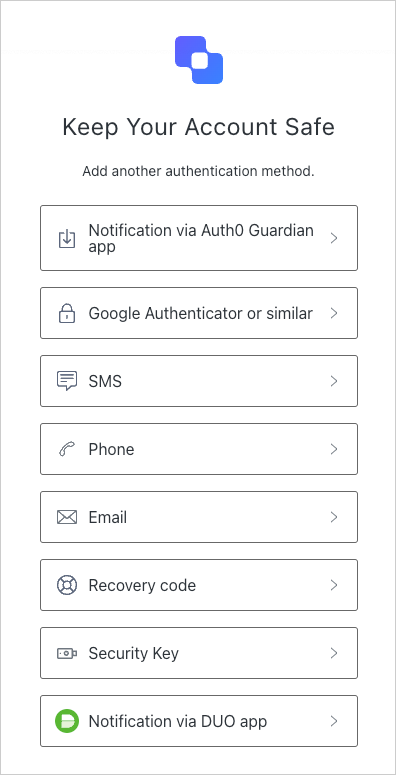 Then, enter the one-time code into the login prompt to verify your identity.